Data Analysis in Google Sheets: QUERY & Pivots
- Yes — Google Sheets has data analysis. Start with
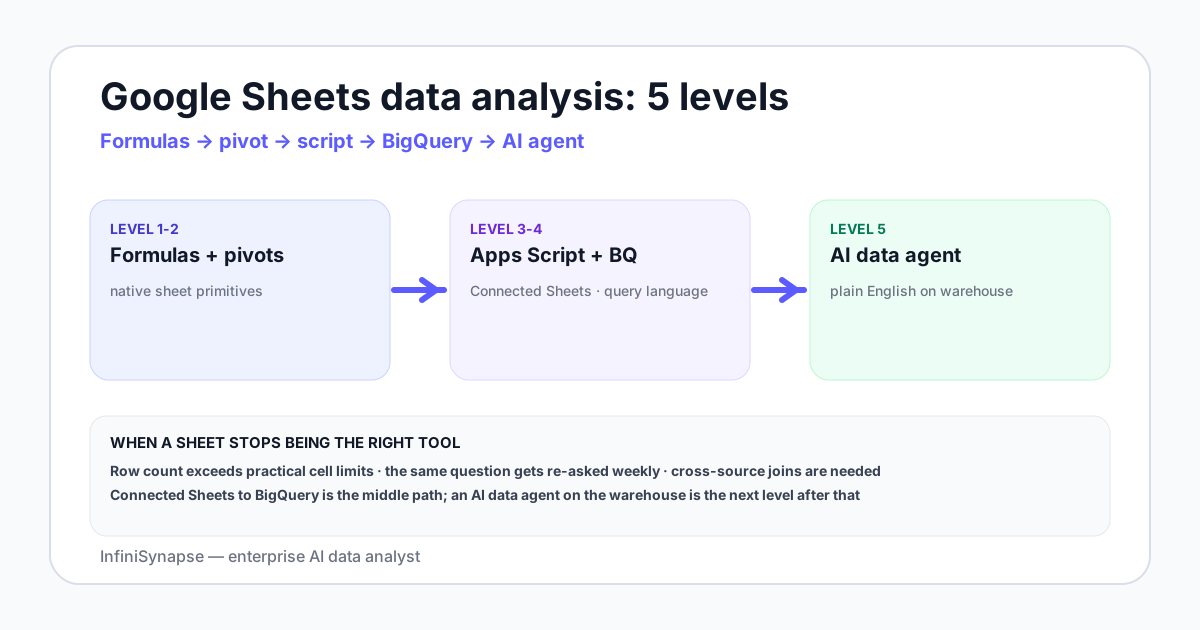
QUERY, a pivot, and a raw → staging → report tab. Stay under a few hundred thousand rows. - Pivot tables, named ranges, and a "raw → staging → reporting" tab pattern carry most working analyst workflows.
- Apps Script automates the repeat work: triggers, custom functions, and email digests. Connected Sheets pushes the heavy joins down to BigQuery without leaving the spreadsheet.
- Gemini in Sheets drafts formulas and explanations. It does not know your business ” it knows your headers.
- Graduate to a data agent when the workbook becomes an unmaintained ETL pipeline or when stakeholders start asking cross-source questions.
Direct answer: how do you do data analysis in Google Sheets?
A sample workbook to work from
The examples below assume one Google Sheet with three tabs. raw_orders is a CSV exported from your order system: an order_id, an order_date, a customer_id, a region, a product_sku, a units, and an amount_usd. raw_customers is an export with customer_id, signup_date, plan_tier, and utm_source. staging and report tabs are where the work happens.
This three-tab pattern ” raw, staging, report ” is the single highest-return habit in spreadsheet analysis. It means a reviewer can trust that the raw tab was never edited, that the staging tab shows exactly which transforms were applied, and that the report tab is what executives actually see. Many of the worst spreadsheet incidents in the wild come from analysts editing the raw export in place and then losing the original.
Formulas every analyst keeps in muscle memory
QUERY ” the SQL inside Sheets
The single most useful formula in Google Sheets is QUERY. It runs a Google Visualization API query ” close enough to SQL ” over a range and returns the result inline. A revenue-by-region rollup looks like this:
=QUERY(raw_orders!A:G,
  "SELECT D, SUM(G)
   WHERE A IS NOT NULL
   GROUP BY D
   ORDER BY SUM(G) DESC
   LABEL SUM(G) 'revenue_usd'", 1)
One formula replaces a pivot table for a known shape and recalculates whenever the raw data updates. Pair it with a date filter on B (order_date) and you have a working weekly revenue tab.
ARRAYFORMULA ” apply once, fill the column
Manual drag-fill breaks the moment someone inserts a row. The ARRAYFORMULA function applies a formula across an entire column once. For workbook-heavy teams, see also AI tools for Excel data analysis. To compute amount_per_unit for every order:
=ARRAYFORMULA(IF(F2:F="", "", G2:G / F2:F))
XLOOKUP ” joins without the VLOOKUP pain
XLOOKUP replaced VLOOKUP for a reason: it returns from columns to the left of the lookup key, handles exact and fuzzy matches cleanly, and accepts a default for missing rows. Bring plan_tier from raw_customers into raw_orders:
=ARRAYFORMULA(XLOOKUP(C2:C, raw_customers!A:A, raw_customers!C:C, "unknown"))
SUMIFS, COUNTIFS, AVERAGEIFS ” grouped aggregates
When a pivot would be overkill, the *IFS family answers single-cell questions: "revenue from EU customers on plan_tier = pro in May 2026." They scan, they group, they return a number. Keep them in your report tab, not your raw tab, so you can edit thresholds without touching the source data.
REGEXEXTRACT ” parse the columns nobody designed
UTM strings, log lines, free-text customer notes ” they all show up. REGEXEXTRACT(string, pattern) grabs the substring you want. To pull a campaign name out of a UTM URL:
=REGEXEXTRACT(A2, "utm_campaign=([^&]+)")
IFERROR ” guard the cell, not the chart
Wrap any formula that touches user data with IFERROR(formula, fallback). A blank cell or a stray text input should never propagate #N/A into the chart that the CFO reads on Monday morning.
Already past a few tabs of import logic?
If your Sheet is becoming an ETL pipeline—or stakeholders ask cross-source questions—connect the warehouse read-only and keep metric definitions in a knowledge base. Review the plan, SQL, and evidence trail before writing results back to a tab.
Pivot tables that survive review
A pivot table in Google Sheets is fast to build and slow to defend if column names are sloppy. Three habits make pivots durable:
- Name your columns once. Use
snake_caseheaders in the raw tab. Never label two columnsamount. Never put units in the header (amount_usd, notamount $). - Anchor the pivot on the staging tab. Build pivots on a tab that selects from
raw_*with oneQUERY. When the raw data shape changes, you fix one formula, not five pivots. - Document the calculated fields. A pivot's "Calculated field" lives invisibly inside the pivot. Re-create that math as a named function or note it in a
READMEtab so the next analyst doesn't reverse-engineer it.
For aggregations that need plain-English defense, an AI database query agent can run the same group-by against a live database and write back to a Sheet, giving you both the pivot and the SQL trail behind it.
Apps Script: automate the boring half
Apps Script is JavaScript with first-class bindings to Sheets, Gmail, Drive, and Calendar. It is the cheapest scheduler an analyst has access to. Four use cases pay for the learning curve:
- Time-driven triggers. A nightly script that pulls an API endpoint with
UrlFetchAppand writes rows intoraw_orders. Set the trigger from the Apps Script editor under Triggers → Add Trigger. - Custom functions. Define a function called
NORMALIZE_REGIONand call it from a cell like a native formula. Good for opinionated text cleanup that lives in one place. - onEdit handlers. Stamp
last_edited_atin column H whenever a row in the staging tab changes. Reviewers love this. - Email digests. A weekly job that reads the
reporttab, builds an HTML body, and sends to a Google Group.MailApp.sendEmailis two lines.
A minimal example ” log the active user every time the workbook is opened:
function onOpen(e) {
  const sheet = SpreadsheetApp.getActive().getSheetByName('audit_log');
  sheet.appendRow([new Date(), Session.getActiveUser().getEmail()]);
}
Apps Script does have quotas ” runtime per execution, daily email volume, URL fetch counts. For anything past a few thousand daily operations, move the job to a real scheduler.
Connected Sheets to BigQuery: spreadsheets at warehouse scale
Connected Sheets lets you point Google Sheets at a BigQuery table and analyze it without exporting. The data stays in BigQuery; the pivot tables, charts, and formulas push their work down as queries. You read summaries inline, billions of rows behind the scenes.
The fit case is clear: the warehouse holds the source of truth, the analyst lives in Sheets, and exporting CSVs every Monday is the bottleneck. Connected Sheets closes the loop. The catch: pivot operations against a billion-row table burn slot time. Document the queries the workbook is firing so finance does not get a surprise BigQuery bill.
If your warehouse is Snowflake or Redshift instead of BigQuery, Connected Sheets does not apply directly ” Google ships it for BigQuery only. A data analyst Snowflake walkthrough covers the equivalent path through a Snowflake connector or a data agent.
Not on BigQuery? Same graduation path
Connected Sheets is BigQuery-only. For Snowflake, Postgres, MySQL, or mixed stacks, a data agent can answer in plain English and write verified results back to Sheets—without CSV Monday.
Gemini in Sheets, and where it stops
Gemini in Sheets is the side panel that drafts formulas from plain English, explains formulas you didn't write, summarises a sheet, and suggests charts from a selection. For a working analyst, the three honest uses are:
- Formula recall. "Write a QUERY that sums amount_usd by region for last 30 days." Faster than reading docs for the syntax of
WHERE A >= today()-30. - Formula explanation. Paste a 200-character nested formula a teammate wrote and ask Gemini what it does. Saves an interrupt.
- Chart suggestions. Select a range, ask for the right chart, and it picks reasonable axes.
Where it stops: Gemini reads your sheet, not your business. It does not know that region = "APAC" excludes Japan in your reporting, that plan_tier = "pro" includes legacy plans, or that May 2026's revenue was inflated by an internal test. That context lives in a knowledge base or a data dictionary, not in the headers. The same gap is why agentic analytics adds a retrieval layer ” see agentic analytics (explained) for the structural argument.
Three Google Sheets data analysis examples
Honest, vendor-neutral examples ” none invented, all common in working analytics teams.
| Example | Inputs | Key formulas / features | Output |
|---|---|---|---|
| Weekly revenue summary | CSV from BI export of orders | QUERY by region and week, ARRAYFORMULA for unit conversion, sparkline chart per row | A one-tab report emailed Monday via Apps Script |
| UTM audit | Marketing landing-page click log | REGEXEXTRACT for campaign and source, COUNTIFS for grouping, conditional formatting for malformed tags | List of mis-tagged URLs with the campaign owner cc'd |
| Finance reconciliation | Bank export + invoice list | XLOOKUP by invoice id, SUMIFS for paid vs invoiced, IFERROR for missing entries | A two-column diff with mismatches at the top |
A spreadsheet is fine until two analysts disagree about a number on it. Then you need a definition outside the sheet.
When to graduate to a data agent or warehouse
Sheets stops being the right tool when one of these shows up:
- Five-plus tabs of import logic. Your workbook is an ETL pipeline now. Pipelines need ownership and tests.
- The same number, three different places, three different answers. A signal that the metric definition lives nowhere in particular.
- Row counts that trip import. Once the export does not fit, the workbook becomes a sampled view ” and samples lie about totals.
- Cross-source questions. "Compare last month's Stripe revenue against the Postgres order table" is a join across systems. That is a database question.
- Audit requirements. Regulated industries need evidence trails per result. A formula history does not satisfy that bar. The NIST AI RMF gives a shared structure for what an evidence trail looks like.
At that point the natural move is an AI data analyst ” connect the warehouse and operational databases, define metrics in a knowledge base, and let the agent answer in plain English with the SQL and source rows attached. InfiniSynapse pairs each connected database with a curated knowledge base of business definitions, which is the data agent pattern (glossary) designed exactly for this graduation moment.
When Sheets is the right tool
- One analyst, one workbook, agreed metrics
- Data fits comfortably under a few hundred thousand rows
- Collaboration matters more than raw speed
- Stakeholders want a familiar surface, not a new BI tool
When Sheets is not
- Production data joins across two databases
- Regulated workflows with audit needs
- Workbook has become a brittle ETL pipeline
- Different teams calculate the same metric differently
Move past spreadsheet ETL with an AI data analyst
Connect your warehouse and operational databases read-only, seed a knowledge base with the metric definitions you currently re-derive in three tabs, and ask the same question you used to copy-paste from Sheets. Review the plan, the SQL, and the evidence trail before the answer is written back to a tab ” your reviewer keeps Sheets, your business keeps the source of truth.
Try InfiniSynapse online →FAQ
Methodology and review notes
Last updated: 2026-09-17 · Next scheduled review: 2026-12-17
The workflows on this page are grounded in vendor documentation (Google Workspace, Apps Script, Connected Sheets, Gemini in Workspace), public benchmarks (BIRD), governance frameworks (NIST AI RMF), and InfiniSynapse product documentation. The sample workbook is synthetic but mirrors the structure of an order plus customer dataset common in working analytics teams.
Conflict of interest: InfiniSynapse publishes this guide and sells a data agent that targets the graduation case at the end. To reduce bias, the page includes scenarios where Sheets is the right tool outright, an honest filter for when it is not, and external sources for every numeric or product claim.
Update cadence: Reviewed every 90 days for terminology, product changes, formula syntax updates, and schema consistency.
Sources and references
- [Vendor] Google. Google Sheets function list. support.google.com/docs/table/25273.
- [Vendor] Google. QUERY function documentation. support.google.com/docs/answer/3093343.
- [Vendor] Google. Apps Script reference. developers.google.com/apps-script.
- [Vendor] Google Cloud. Connected Sheets to BigQuery. cloud.google.com/connected-sheets.
- [Vendor] Google Workspace. Gemini in Workspace overview. workspace.google.com/solutions/ai.
- [Vendor] Google. Files you can store in Google Drive ” Sheets cell limit. support.google.com/drive/answer/37603.
- [Vendor] Google. ARRAYFORMULA. support.google.com/docs/answer/3093275.
- [Vendor] Google. XLOOKUP. support.google.com/docs/answer/12427125.
- [Vendor] Google Cloud. BigQuery documentation. cloud.google.com/bigquery/docs.
- [Independent] BIRD-SQL benchmark. bird-bench.github.io.
- [Independent] NIST. AI Risk Management Framework. nist.gov/itl/ai-risk-management-framework.