
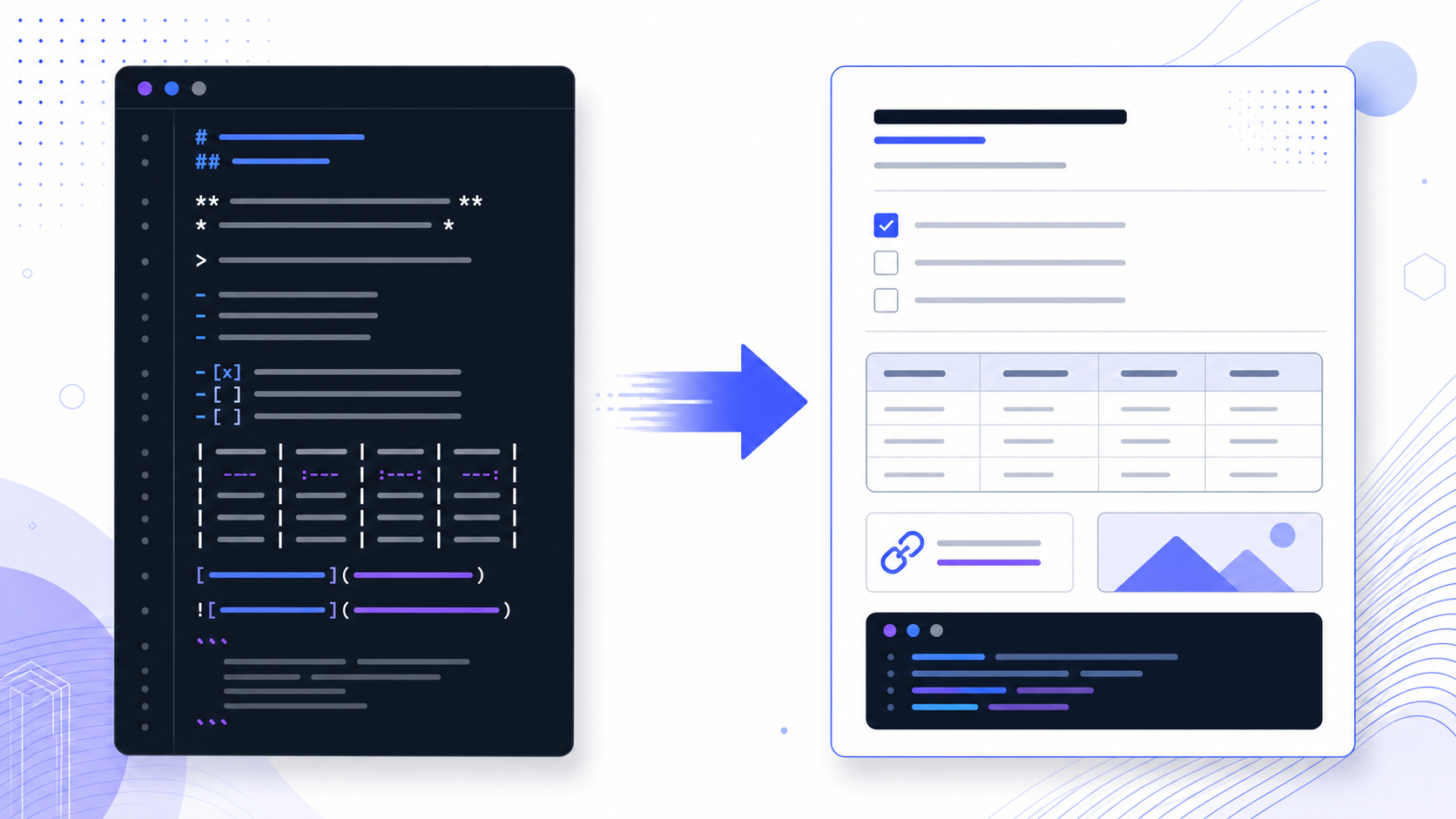
Markdown syntax quick reference
The practical core of Markdown is small enough to scan in a minute. The table below separates broadly portable syntax from common extensions, because “valid Markdown” does not always mean “identical output.” CommonMark defines a consistent baseline for parsers, while platforms such as GitHub add useful authoring features. When a document must move between systems, test the exact renderer rather than assuming every extension will survive.
| Element | Write this | Use and compatibility |
|---|---|---|
| Heading | # Title## Section | One to six hash marks; add a space after them. |
| Bold / italic | **bold***italic* | Core syntax; keep punctuation outside markers when possible. |
| Unordered list | - Item | Core syntax; indent nested items consistently. |
| Ordered list | 1. First | Core syntax; many renderers calculate numbering. |
| Link | [label](https://example.com) | Use descriptive link text rather than “click here.” |
| Image |  | Alt text describes the image when it cannot be seen. |
| Inline code | `npm run build` | Core syntax; backticks preserve code-like text. |
| Code block | ```js … ``` | Fenced blocks are widely supported; the language label is optional. |
| Blockquote | > Quoted text | Core syntax; repeat the marker for multiple paragraphs. |
| Table | | A | B | | GFM extension; not part of the portable core. |
| Task list | - [ ] To do | GFM extension; interaction varies by platform. |
| Strikethrough | ~~removed~~ | GFM extension; verify before conversion. |
| Horizontal rule | --- | Core syntax; surround it with blank lines. |
| Escape character | \* | Prevents a punctuation character from becoming formatting. |
| LaTeX / emoji | Renderer-specific | Check the destination. These marks are outside the core and GFM rows above. |
Headings, paragraphs, emphasis, and line breaks
Start a heading with one to six # characters followed by a space. Use one level-one heading for the document title, level two for major sections, and deeper levels only when the content genuinely has another layer. A readable outline is more useful than choosing a heading level for its visual size. Styling belongs to the renderer; structure belongs in the Markdown.
# Deployment runbook
## Before deployment
### Verify the release

This is a paragraph with **important text**, *emphasis*,
and `an inline command`.
A blank line creates a new paragraph. A single newline may be treated as ordinary whitespace, depending on the renderer. If you need a deliberate hard line break, CommonMark supports two trailing spaces or a backslash at the end of the line. The backslash is easier to notice during review, but some teams prefer wrapping prose naturally and avoiding forced breaks altogether.
#Heading without a space. Also avoid using bold text as a substitute for a heading: it looks prominent but does not create a navigable document outline.Lists, checklists, and blockquotes
Use hyphens, asterisks, or plus signs for unordered lists and numbers followed by periods for ordered lists. Pick one unordered marker and stay consistent. Nested content requires indentation; four spaces is a safe choice when a list item contains another list, a paragraph, or a code block. Keep a blank line before a list if the preceding paragraph might otherwise run into it.
- Prepare
    - Back up data
    - Notify owners
- Deploy
- Verify- [x] Draft content
- [x] Review links
- [ ] Test conversion
- [ ] PublishTask lists are excellent for issues, pull requests, and lightweight plans, but the checkbox may be interactive on one platform and static on another. Blockquotes begin with >. Use them for quoted material or short callouts, not as a universal layout container. For a multi-paragraph quote, prefix the blank quote line and each paragraph with the marker so the structure remains unambiguous.
Markdown links and images that remain understandable
An inline link combines a label in square brackets with a destination in parentheses. The label should explain what the reader will find. Reference-style links are useful in long documents because they move lengthy destinations away from the sentence and let several references share one definition.
Read the [CommonMark specification](https://spec.commonmark.org/).

See the [release checklist][release].

[release]: https://example.com/release-checklist "Release checklist"
Images use the same pattern with a leading exclamation mark. The words inside square brackets are alternative text, not a caption. Describe the image’s purpose concisely; do not repeat nearby text or begin with “image of.” A relative path such as images/diagram.png is usually easier to move with a repository, while an absolute URL depends on the remote asset remaining available.

[](https://example.com/dashboard)URLs containing spaces or parentheses can confuse parsers. Prefer clean URLs, percent-encode spaces, or use a reference link. After moving a file, verify relative image and link paths from the document’s new location. Broken assets are one of the most common failures in otherwise correct Markdown.
Inline code and fenced code blocks
Wrap a command, file name, field, or short expression in one backtick. For a longer sample, use a fenced code block with three backticks on separate lines. Add a language identifier—such as js, python, sql, or json—when the renderer supports syntax highlighting. The identifier helps both readers and tooling understand what the sample contains.
```sql
SELECT customer_id, COUNT(*) AS orders
FROM orders
GROUP BY customer_id
ORDER BY orders DESC;
```
Do not put explanatory prose inside the fence unless it belongs to the code. Introduce the sample before it and explain the result afterward. If the code itself contains triple backticks, wrap the outer block with four backticks. Code blocks inside list items need consistent indentation and usually a blank line before the fence.
How to create a Markdown table
A Markdown table has a header row, a delimiter row, and data rows. Vertical bars separate columns. Colons in the delimiter row control left, center, or right alignment in renderers that support it. The outer bars are often optional, but including them makes the raw table easier to scan.
| Status | Owner | Time saved |
|:-------|:-----:|-----------:|
| Ready  | Ana   | 4 hours    |
| Review | Dev   | 2 hours    |
Tables are useful for compact comparisons, not long prose. They become difficult to read on phones when cells contain paragraphs or many columns. If a table exceeds four or five columns, consider splitting it or using a list. A literal vertical bar inside a cell usually needs escaping as \|. Because tables are an extension rather than core CommonMark, test the destination application before relying on them.
CommonMark versus GitHub Flavored Markdown
Markdown is a family of implementations rather than a single identical renderer. The CommonMark specification provides a precise, testable interpretation of the core language. GitHub Flavored Markdown, commonly shortened to GFM, extends CommonMark with tables, task list items, strikethrough, and autolinks. GitHub also documents its platform-specific behavior in its writing and formatting guide.
The safest workflow is to write the portable core for content that must travel widely, then use extensions only when they produce meaningful value. A README hosted on GitHub can reasonably use task lists and tables. A document that will pass through several converters should use simpler structures unless those converters are known to support the same extension set.
Markdown formatting errors and how to fix them
| Symptom | Likely cause | Fix |
|---|---|---|
| Heading appears as plain text | No space after # | Write ## Section, not ##Section. |
| List merges into a paragraph | Missing blank line or inconsistent indentation | Add a blank line and align markers. |
| Code fence never closes | Opening and closing fence differ | Use matching backtick fences on their own lines. |
| Image does not load | Wrong relative path or filename case | Resolve the path from the Markdown file and match case. |
| Table columns break | Missing delimiter cells or unescaped bar | Match column counts and escape literal bars. |
| Checkbox is plain text | Renderer does not support task lists | Use a GFM-compatible renderer or a regular list. |
When output differs between tools, reduce the example to the smallest block that still fails. Check blank lines, indentation, punctuation, and extension support in that order. This is faster than changing several pieces at once. Keep a representative test document containing a heading, nested list, link, image, table, and code block if Markdown is part of a recurring publishing workflow.
A reliable Markdown writing and conversion workflow
Use one clear title, descriptive section headings, short paragraphs, and portable syntax.
Check the actual renderer, especially tables, tasks, nested lists, images, and code highlighting.
Open the exported file and review pagination, links, alt text, tables, and code blocks.
Keep the source file and its local assets together, use meaningful filenames, and avoid embedding secrets or private URLs. Before conversion, remove unsupported HTML and confirm that headings form a sensible outline. After conversion, do not assume that a successful download means a faithful result: inspect page breaks, font substitutions, clipped tables, clickable links, and image resolution. If the destination is Word rather than PDF, follow markdown to word.
Turn your Markdown cheat sheet into a shareable file
Once the syntax previews correctly, use the InfiniSynapse Markdown to PDF tool to render headings, tables, code blocks, and links into a downloadable PDF. The tool processes the content in the browser; still remove confidential information before using any conversion workflow.
Open Markdown to PDF →Markdown cheat sheet FAQ
This markdown cheat sheet puts core syntax and GFM extensions in one table. Headings, emphasis, lists, links, images, and fences are core. Tables, task lists, and strikethrough are marked as GFM.
Use hash marks for headings, asterisks or underscores for emphasis, hyphens or numbers for lists, brackets and parentheses for links, a greater-than sign for blockquotes, and backticks for code. Those elements cover most everyday documents.
Start a new paragraph with a blank line. For a hard line break inside a paragraph, CommonMark supports two spaces or a backslash at the end of the line. Renderer settings may also preserve ordinary newlines.
Write a header row, a delimiter row made of hyphens, and data rows, separating columns with vertical bars. Tables require an extended dialect such as GFM, so test them in the destination.
Write an exclamation mark, descriptive alt text in square brackets, and the image path in parentheses: . Confirm the path from the Markdown file’s location.
Apps may use different parsers, extension sets, and stylesheets. CommonMark reduces ambiguity in the core syntax, while platform-specific features still vary. Preview with the final renderer.
Yes. A converter renders Markdown into an intermediate document or HTML and then produces a PDF. Check tables, code wrapping, page breaks, images, and links in the final file.
Markdown 语法快速参考
Markdown 的核心语法很少,一分钟就能扫完。真正需要注意的不是“符号有没有写对”,而是不同渲染器是否支持同一套扩展。CommonMark 统一了基础解析规则;GitHub Flavored Markdown(GFM)在此基础上增加表格、任务清单、删除线和自动链接。文档如果需要跨平台发布或转换,应该在最终使用的渲染器中预览,而不是假设所有软件会得到完全相同的结果。
| 元素 | 写法 | 用途与兼容性 |
|---|---|---|
| 标题 | # 一级标题## 二级标题 | 支持一到六级,井号后必须留空格。 |
| 粗体 / 斜体 | **粗体***斜体* | 基础语法,通常可跨平台使用。 |
| 无序列表 | - 项目 | 嵌套内容要统一缩进。 |
| 有序列表 | 1. 第一步 | 多数渲染器会自动处理编号。 |
| 链接 | [说明文字](URL) | 锚文本应准确说明目标内容。 |
| 图片 |  | 替代文字用于无障碍访问和加载失败场景。 |
| 行内代码 | `npm run build` | 用反引号保留命令或字段的代码样式。 |
| 代码块 | ```js … ``` | 语言名称可帮助渲染器进行语法高亮。 |
| 引用 | > 引用内容 | 适合引用原文或简短说明。 |
| 表格 | | A | B | | 属于常见扩展,不是全部解析器的基础能力。 |
| 任务清单 | - [ ] 待办 | 属于 GFM 扩展,交互方式因平台而异。 |
| 删除线 | ~~删除~~ | 属于 GFM 扩展,转换前需要测试。 |
| 分隔线 | --- | 前后保留空行可减少歧义。 |
| 转义字符 | \* | 让特殊标点按普通字符显示。 |
| LaTeX / emoji | 由渲染器决定 | 换工具前在目标环境看一眼。这两类不在上面的基础语法和 GFM 行里。 |
标题、段落、强调与换行
标题以一到六个 # 开始,井号后要有一个空格。通常一篇文档只使用一个一级标题,二级标题划分主要章节,更深的层级只在内容确实存在从属关系时使用。不要为了字号大小随意选择标题级别:Markdown 负责表达结构,视觉大小应该交给最终样式处理。
# 部署运行手册
## 部署前检查
### 验证发布版本

这是一个包含 **重要内容**、*强调文字*
以及 `行内命令` 的段落。
空一行表示新段落。单次换行在部分渲染器中会被当作普通空格。如果必须在同一段中强制换行,CommonMark 支持在行尾写两个空格或一个反斜杠。团队写作时最好明确约定一种方式,否则源文件里的不可见空格很难审查。
#标题;井号后缺少空格时可能只会显示普通文本。也不要用粗体代替标题,因为粗体不会进入可导航的文档大纲。列表、任务清单与引用
无序列表可以使用连字符、星号或加号,有序列表使用数字加句点。建议统一使用一种无序列表符号。嵌套列表、列表中的新段落或代码块需要保持一致缩进,四个空格通常比较稳妥。列表前保留空行,可以避免它与上一个段落粘连。
- 准备
    - 备份数据
    - 通知负责人
- 部署
- 验证- [x] 完成初稿
- [x] 检查链接
- [ ] 测试转换
- [ ] 发布任务清单适合 Issue、Pull Request 和轻量计划,但复选框在某个平台上可以点击,在另一个平台上可能只是静态图形。引用以 > 开始,适合引用原文或制作简短提示,不建议把它当作通用排版容器。多段引用需要在空白引用行和每个段落前继续写引用符号。
写出清晰且不易失效的 Markdown 链接和图片
行内链接由方括号中的说明文字和圆括号中的目标地址组成。锚文本应该说明用户点击后会看到什么,不要只写“点击这里”。长文档可以使用引用式链接,把很长的 URL 移到正文之外,并让多个位置共用同一个链接定义。
阅读 [CommonMark 规范](https://spec.commonmark.org/)。

查看 [发布清单][release]。

[release]: https://example.com/release-checklist "发布清单"
图片语法与链接类似,只是在最前面增加感叹号。方括号里填写的是替代文字,而不是图片标题。替代文字应简洁描述图片的作用,不要机械重复相邻正文。相对路径便于图片随仓库或文件夹一起移动;远程绝对地址则依赖外部资源持续可用。

[](https://example.com/dashboard)带空格、括号或特殊字符的 URL 可能导致解析错误。优先使用干净的地址,必要时对空格编码或改用引用式链接。移动文档后,要从 Markdown 文件的新位置重新核对相对路径;路径错误和文件名大小写不一致,是图片无法显示的常见原因。
行内代码与围栏代码块
命令、文件名、字段或短表达式可以放在一对反引号中。多行示例使用单独成行的三个反引号包围。支持语法高亮的渲染器可以读取 js、python、sql 或 json 等语言标识,这能帮助读者和工具正确理解代码类型。
```sql
SELECT customer_id, COUNT(*) AS orders
FROM orders
GROUP BY customer_id
ORDER BY orders DESC;
```
解释性文字应放在代码块外:先说明示例目的,再给出代码,最后解释输出。若代码本身包含三个反引号,可使用四个反引号作为外层围栏。列表中的代码块还需要一致缩进,并通常要在围栏前留空行。
如何创建 Markdown 表格
Markdown 表格由表头行、连字符组成的分隔行和数据行构成,竖线负责分列。支持对齐的渲染器会读取分隔行中的冒号,分别实现左对齐、居中或右对齐。最外侧竖线通常可以省略,但保留它们更利于阅读源文件。
| 状态 | 负责人 | 节省时间 |
|:-----|:------:|---------:|
| 就绪 | Ana    | 4 小时   |
| 审核 | Dev    | 2 小时   |
表格适合紧凑比较,不适合承载长段文字。列数过多或单元格过长时,移动端阅读体验会明显下降。超过四到五列时可以考虑拆表或改用列表。单元格中的普通竖线通常需要写成 \|。由于表格属于扩展语法,发布或转换前必须确认目标软件是否支持。
CommonMark 与 GitHub Flavored Markdown 的区别
Markdown 并不是所有软件都完全一致的单一渲染器。CommonMark 规范对核心语法给出了精确、可测试的解析规则。GitHub Flavored Markdown 在 CommonMark 基础上加入表格、任务清单、删除线和自动链接。GitHub 还在官方的基本撰写和格式语法文档中说明平台行为。
需要广泛流转的内容应优先使用基础语法,扩展功能只在确实有价值且目标平台支持时使用。托管在 GitHub 的 README 合理使用表格和任务清单;要经过多个转换器的文档,则应该使用更简单的结构,除非已验证每个环节支持相同扩展。
常见 Markdown 格式错误与修复方法
| 现象 | 可能原因 | 修复方法 |
|---|---|---|
| 标题显示为普通文本 | # 后没有空格 | 写成 ## 章节,不要写 ##章节。 |
| 列表粘进上一段 | 缺少空行或缩进不一致 | 在列表前空一行,并对齐列表符号。 |
| 代码块一直不结束 | 开始和结束围栏不匹配 | 在独立行使用数量一致的反引号。 |
| 图片无法显示 | 相对路径错误或大小写不同 | 从 Markdown 文件位置解析路径,并匹配文件名大小写。 |
| 表格列错位 | 分隔列数量不同或竖线未转义 | 统一每行列数,并转义内容中的竖线。 |
| 复选框显示为普通文字 | 渲染器不支持任务清单 | 改用兼容 GFM 的工具或普通列表。 |
不同工具输出不一致时,先把问题缩减为仍能复现的最小示例,再依次检查空行、缩进、标点和扩展支持。不要一次修改多个变量。若团队长期使用 Markdown 发布,可以保留一份包含标题、嵌套列表、链接、图片、表格和代码块的测试文档,每次更换渲染器或转换器时先跑一遍。
可靠的 Markdown 写作与转换流程
使用一个明确标题、清晰的章节标题、短段落和兼容性高的基础语法。
重点检查表格、任务清单、嵌套列表、图片路径和代码高亮。
打开导出文件,检查分页、链接、替代文字、表格和代码块。
源文件与本地资源应放在结构清晰的目录中,文件名要有意义,正文中不要包含密钥或私有地址。转换前移除不受支持的 HTML,并确认标题大纲合理。转换成功并不代表结果准确;仍需检查分页、字体替换、表格裁切、链接可点击性和图片清晰度。目标是 Word 而不是 PDF 时,看 markdown to word。
把 Markdown 速查内容转换成可分享文件
确认语法预览无误后,可以使用 InfiniSynapse Markdown 转 PDF 工具,把标题、表格、代码块和链接渲染为可下载 PDF。工具在浏览器中处理内容;无论使用哪种转换流程,都应先删除机密信息。
打开 Markdown 转 PDF 工具 →Markdown 语法速查常见问题
基础语法和 GFM 扩展在同一张表里。标题、强调、列表、链接、图片和代码围栏是基础语法。表格、任务清单和删除线标成 GFM。
用井号写标题,用星号或下划线强调文字,用连字符或数字写列表,用方括号和圆括号写链接,用大于号写引用,用反引号标记代码。这些语法已经能覆盖多数日常文档。
空一行会开始新段落。同一段内强制换行时,CommonMark 支持在行尾写两个空格或一个反斜杠。部分渲染器也可以配置为保留普通换行。
先写表头行,再写由连字符组成的分隔行,然后添加数据行,各列用竖线分隔。表格依赖 GFM 等扩展语法,因此要在最终发布环境中测试。
写一个感叹号,在方括号内写替代文字,在圆括号内写图片路径,即 。还要从 Markdown 文件所在位置核对相对路径。
不同软件可能使用不同解析器、扩展集合和样式表。CommonMark 减少了基础语法歧义,但平台专属功能仍会不同,所以应使用最终渲染器预览。
可以。转换器通常先把 Markdown 渲染成中间文档或 HTML,再生成 PDF。导出后要检查表格、代码换行、分页、图片和链接。